
DeepDojo.AIPublished 2026-11-10Updated 2026-11-10中文
How Claude Code Differs From Chat AI for Coding
You're in a React project and you want one tiny change: the contact form button should say "Send Message" instead of "Submit." With a chat AI, you'd hunt down the component, paste the code into the chat, paste the answer back, save, and refresh. With Claude Code, it searches the project, finds the button, and edits the file itself.
Then you open the checkout page. Its button says "Send Message" too. The label turned out to be a default in a shared component, so Claude Code changed the right file and quietly changed a second page with it.
This is what catches people when they move from chat answers to an agent working inside their project. Claude Code reads files, runs commands, and makes real edits, so a mistake costs more than a bad reply in a chat window. The more it can do, the more you need to know which decisions are still yours.
Before your first real task, it helps to know three things:
- what it can actually read and change;
- which tasks are good for practice;
- which decisions and reviews stay with you.
Once you know those, the button task plays out differently. You ask Claude Code where the label comes from and which pages use it, and you let it edit only after you've seen the answer.
01 From Copy and Paste to Working Inside the Project
Coding with a chat AI usually looks like this:
You copy some code
The AI explains it or writes new code
You paste it back into your editor
You run the tests yourself
If there's an error, you copy it back to the AI
That's fine for talking through one function or one error message. But a real project also has config, dependencies, routes, and data structures. Give the AI a single file and it may miss how that file fits with the rest, so the code it writes may not suit your project.
Claude Code uses Claude's models to explain code, fix bugs, and write tests. It also has tools that let it read files, edit code, and run commands in your development environment. You can use it in the terminal, in an IDE (integrated development environment), in the desktop app, or in a browser. You give it a goal and a project, and it works within the limits you set. The Claude Code docs describe it the same way: an agentic coding tool that reads your codebase, edits files, and runs commands.
02 What a Coding Agent Actually Is
A one-line definition is a good place to start:
Claude Code is an AI coding agent that can work inside a code project, understand its context, use tools, and carry out development tasks.
Four words in that sentence do a lot of work:
| Term | What it means in a real task |
|---|---|
| Code project | Where it works. Its changes have to fit the existing structure, so it checks how files relate |
| Context | What it has to go on right now: the conversation, the files and folders it has read, command output, Git status, and project instructions |
| Tools | How it reads files, searches, edits, runs commands, and sees results. Tools are what turn a suggestion into an action |
| Agent | It breaks a goal into steps, checks each result, and adjusts the next step. What it actually does depends on the task |
Being in your project doesn't mean it knows every file. It has to open a file before that file can shape its decisions. So Claude Code gathers what it needs first, then finds the feature, chooses which files to touch, and works out how to check the result. It repeats this loop:
Gather context
  ↓
Propose the next action
  ↓
Run a tool or make a change
  ↓
Check the result
  ↓
Adjust and continue
Anthropic's page on how Claude Code works describes three phases, gather context, take action, and verify results, and points out that they blend together. Every tool call gives Claude new information, and that information shapes what it does next.
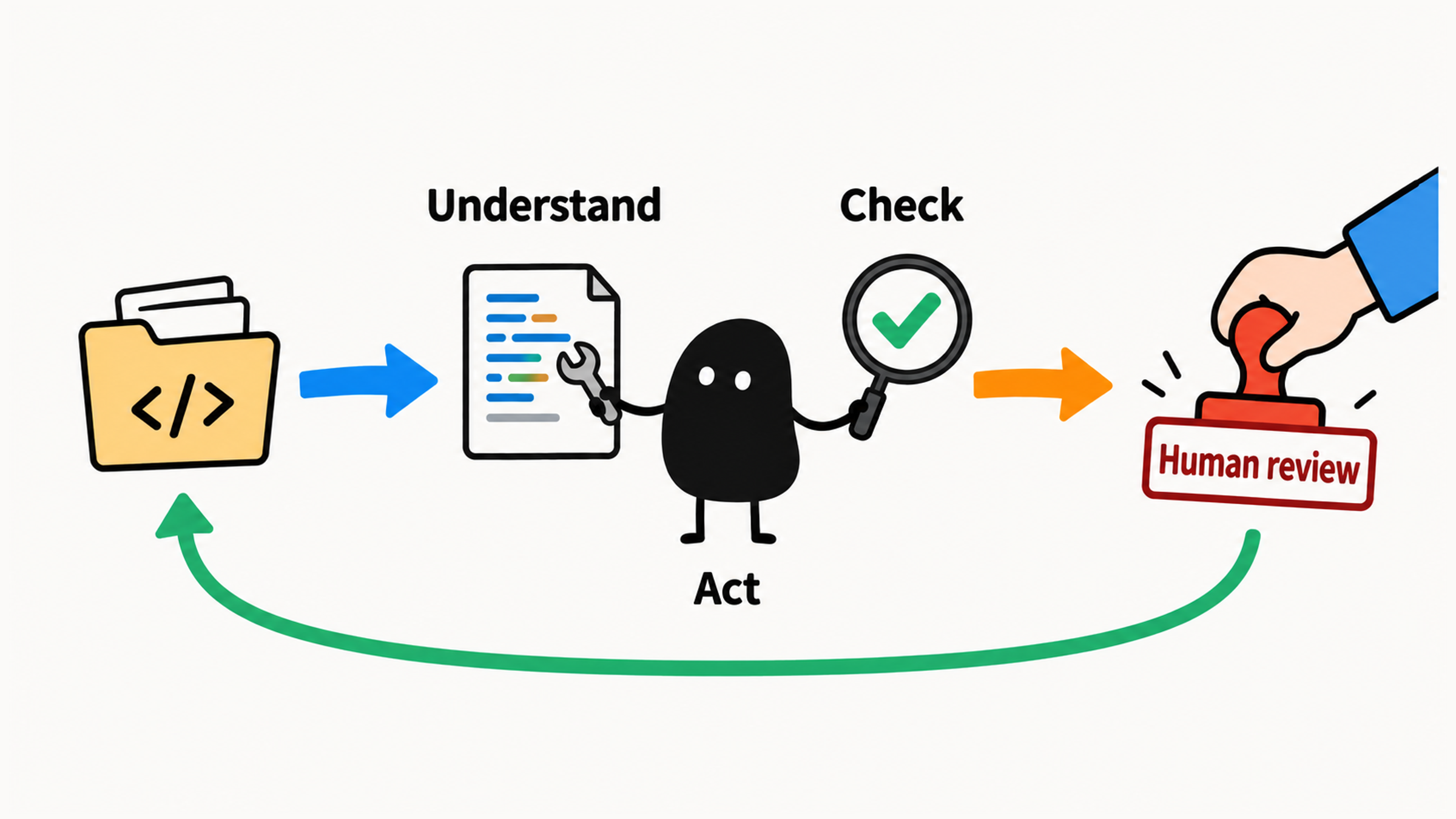
Think of it as a collaborator who can walk into your project. It keeps moving toward the goal, and it really does change files and your environment along the way. You can ask it to look around first. What it's allowed to change after that, and whether you accept the result, is up to you.
03 One Button, Two Ways to Change It
Back to that button. In a regular Claude chat, you might ask:
I have a React project. I want to change a button label from Submit to Send Message. How do I do that?And get something like:
Find the Button component and change the text from Submit to Send Message.That answer doesn't point to an actual file. Unless you've shared the relevant code, you still have to find the component, make the edit, save, and check the page yourself.
With Claude Code, you can ask from inside the project folder:
Find the Submit button on this page.
Don't change anything yet. Just tell me which file it's in and which component renders it.
It searches the project, finds the file, and tells you where the button comes from. Once you're satisfied, you say:
Change this button label to Send Message, and tell me which file you edited.Now it actually edits the file.
Before that edit, though, one question matters: does the label come from this page, or from a default in a shared component?
The page passes in the label  → check how the target page uses it
The component sets a default  → check which pages the change will affect
You only wanted to change the contact form. If the label is a shared default, the checkout page will say "Send Message" too. So find out where the label is used first, then check the target page and every other page the change touches.
Here's how the two compare:
| Chat AI | Claude Code | |
|---|---|---|
| What goes in | The code and questions you paste | The project itself, the conversation, command output, file contents |
| What comes out | Explanations, suggestions, code snippets | Analysis, plans, file edits, command results |
| Your job | Copy, paste, find files, run tests | Set the goal, approve actions, check results |
| Biggest risk | The answer doesn't fit your project | Real changes can break your project |
Whatever coding tool you're sizing up, start with what it can actually read and change, and scope the task to match. The product name tells you nothing about what it will touch this time.
04 Start With Low-Risk Tasks
For your first few sessions, pick tasks that are small and easy to check:
| Task type | A good way to start |
|---|---|
| Learn the project | Find the entry point, the folders, a button, or an API, and explain how they connect |
| Change some copy | Edit one button label, a message, or a section of the README |
| Fix something small | Find the cause and propose a fix first, then fix the bug, add a test, or build a small feature |
| Check results | Run the relevant tests, lint, or build, and explain the output |
How risky a task is depends on your project. Copy on a standalone page is easy to see and easy to undo. A shared component means checking everywhere else it's used. Leave authentication, database migrations, production deploys, and bulk deletes for later. Start with something you can see, review, and roll back.
A good first step is a read-only first session: ask it to describe the project and show its evidence, and let it change nothing.
05 One Task, Five Steps
While you're learning, follow this order. You'll pick up the commands as you go. For now, just notice which steps need a decision from you:
Understand
  ↓
Plan
  ↓
Change in small steps
  ↓
Verify and review
  ↓
Commit only if authorized
Start by understanding the relevant files and how the current code works. Then have it tell you which files it plans to change, why, what could go wrong, and how it will verify the result. Keep your first change to one or two files so it's easy to review.
When it's done, get evidence from the relevant tests, build, or code checks, and look at the page and the diff (the list of file changes) as needed. Make sure your checks cover what actually changed. Only when the result holds up should you think about committing. For a step-by-step way to do that, see how to check code changes made by Claude Code.
This order lets you confirm that it understood the task and the scope before anything changes, and then judge the work by what actually happened.
06 You Own the Boundaries and the Final Review
When a chat AI gives bad advice, all you've lost is a paragraph of text. An agent writes to your files and runs commands in your terminal, so small slips show up in your project right away. Your approvals and reviews have to keep up.
Build three habits from day one:
- For anything important, hear the plan first. Say: "Don't edit any files yet. Tell me how you plan to do this."
- For deletions, databases, environment variables, deployments, and production, understand the impact first and make the call yourself.
- After every change, look at the actual result. Did the tests or build pass? How does the page look? Can you still reproduce the bug? Does the diff match what you expected? Decide whether it's done based on that evidence.
The split is simple. You set the goal, define the scope, decide what's allowed, and check the result. Claude Code investigates, does the work, and reports back. That split is what stops a button change before it reaches the checkout page.