
DeepDojo.AIPublished 2026-11-10Updated 2026-11-10中文
Should You Approve This Claude Code Request?
Claude Code asks for permission to run npm test. It's just the test suite, so you click approve without a second thought. But npm test can mean very different things. In one project it runs local component tests. In another, it wipes a remote database before the tests start.
Beginners usually handle permission requests in one of two ways: approve everything, or approve nothing. Either way, the problem is the same: they have nothing to base the decision on. The command's name, whether a prompt popped up, and whether you wrote "read-only" in your message can't tell you if an action is safe. What matters is what it does, what it touches, and whether you can undo it.
Before you approve, get answers to five questions:
- What exactly is the action, and what are its arguments?
- How much will it affect?
- Can it be undone, and how?
- Does it write to an outside system or touch sensitive data?
- How will you check the result afterward?
Those questions map onto how Claude Code works. Context is what it bases its decisions on. Tools are how it acts. Permissions decide whether an action goes ahead. Your review confirms the result. Once you know what each piece is responsible for, any request tells you whether to read first, plan first, approve, or stop.
01 What's Behind Every Action
When a request to read a file or run a command shows up, separate the evidence, the tool, and the permission before you decide:
Claude Code
  = Claude model + project context + tools
  + permission controls + human review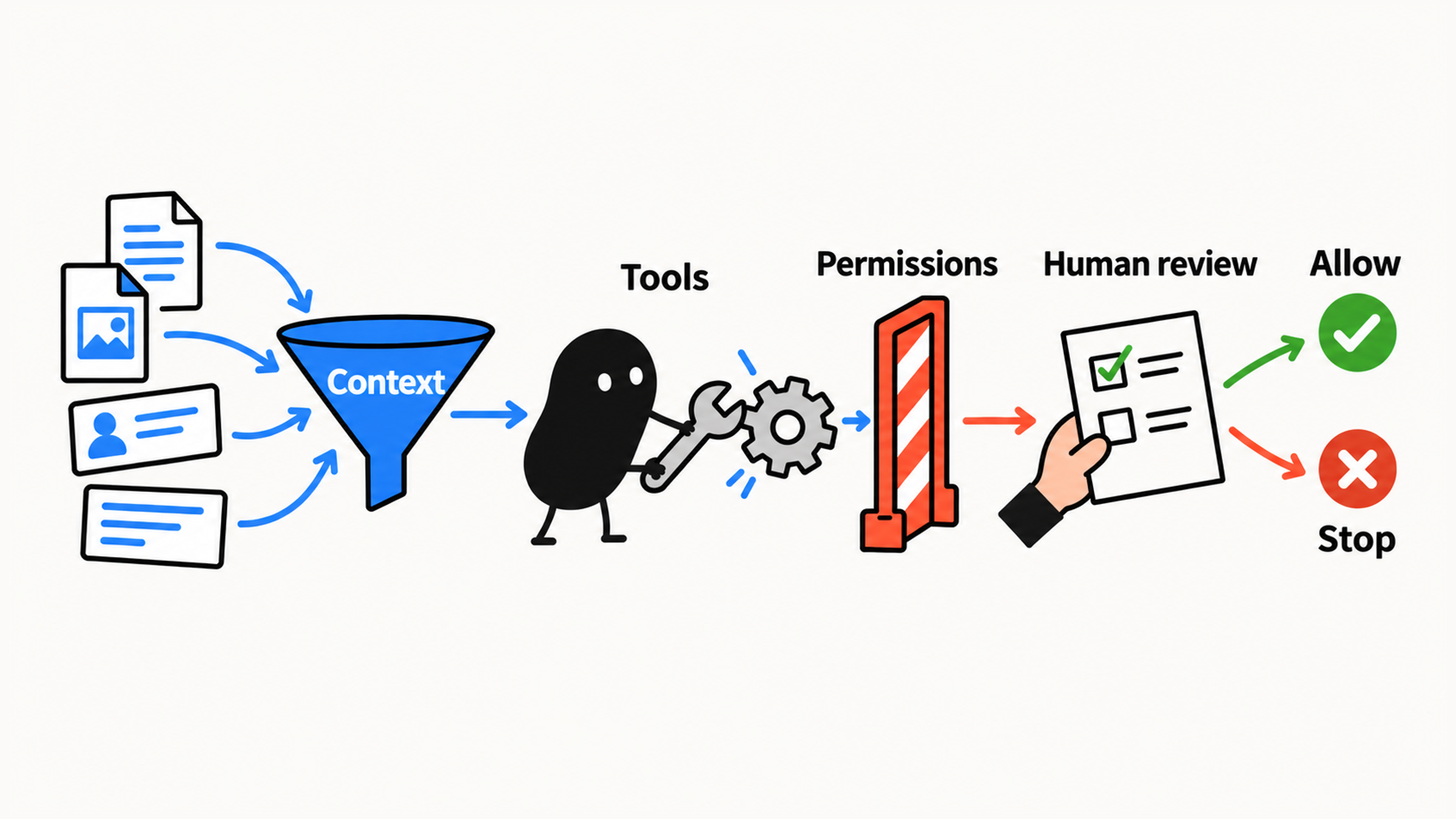
Claude Code can read code, suggest changes, and run commands. Your job is to decide how far it should go on this particular task, and to use permissions to hold it to that. Once it acts, you check the result.
02 Context: What It Has to Go On
Context is everything Claude Code can see right now. To judge whether an action makes sense, look at what material it has, then at whether its reasoning holds up.
That includes your task description, the conversation so far, files it has read, the project's instruction files, command output, Git status, and whatever understanding it has built up during the session.
Context window size and token counts can wait. For now, remember one thing:
Claude Code acts on what it can see. When material is missing or off-topic, its judgment drifts away from the task.
Say you just write:
Fix this problem for me.Where's the problem? What should "fixed" look like? Which files can it touch? None of that is clear, so Claude Code has to ask or go digging before it can propose anything.
Now compare:
Don't edit any files yet.
Read this project, find the files related to login form validation,
explain how the current logic works, then suggest possible changes.
That spells out the goal, where to look, what to do now, and the read-only limit, so Claude Code can work through it in order.
Understanding the relevant code before changing it lowers the odds of editing the wrong file or the wrong layer. Does that mean it should read the whole project? Not necessarily. It depends on the task. For a button label, start with that component. For a styling issue, follow the styles and the rendering path. To understand a function, look at who calls it, its tests, and its type definitions.
This request is too broad:
Analyze the entire project thoroughly.Try this instead:
Find the files most relevant to this task.
Explain why you think each one is relevant.
Skip unrelated folders for now.
When it explains why each file matters, you can see what's missing and widen the search only when the problem calls for it.
03 Tools: Reading, Editing, Running
Tools are what move Claude Code from talking to doing. A regular Claude chat mostly works from what you give it. Claude Code can use tools in your development environment to read files, search code, edit files, run commands, and see the output.
Look at what a tool does first, then at what it changes:
| Tool type | What it does | How to treat it as a beginner |
|---|---|---|
| Read | View files, search code, list folders | Low risk for ordinary source files; still keep keys and private files off limits |
| Edit | Modify, create, or move files | Always review the diff |
| Run | Run tests, builds, scripts, shell commands | Always understand what the command does |
Every tool result becomes new context for the next decision:
What it knows → decide next step → call a tool → check the result
      ↑                                              │
      └─────────────── adds to context ──────────────┘
Reading usually just adds information, though it can expose sensitive content. Editing changes files. Commands can also affect dependencies, databases, or outside services. For each action, check how far it reaches and how you'd recover.
04 Five Questions Before You Approve
Tools let it act. Permissions decide whether a particular action is allowed. A checkpoint before anything runs gives you the chance to catch a mistake before it costs you.
Reading files and checking status are usually low risk. Edits, commands, and writes to outside systems can change things. When a permission request appears, run it through the five questions from the top of this post. If you don't understand the action or its arguments, ask:
Explain what this command does.
Which files or system state will it change?
Is there a safer, read-only way to check first?
Once the action, its arguments, and its impact are clear, decide whether to allow it.
Back to that npm test. Before you approve it, open package.json and follow the script it calls and what that script targets:
| What the script actually does | What to do |
|---|---|
| Wipes a remote database, then runs tests | Stop. Confirm which environment it targets, how you'd restore the data, and whether you ever approved this write. If any of that is unclear, find a check that leaves outside systems alone |
| Runs approved local component tests, with clear scope and side effects | Go ahead as planned |
A command's name is only a hint. What the script contains and what it targets are what you base the decision on.
05 Picking a Permission Mode
Claude Code uses permission modes to decide whether edits, commands, and network requests need your sign-off. Start with these three:
| Mode | What it does, roughly | Advice for beginners |
|---|---|---|
| default (labeled Manual) | You approve things manually; anything not already allowed by a rule asks first | Pick this on purpose while you practice |
| plan | Explores and writes a plan without editing your source; may still run exploration commands | Use before making changes |
| acceptEdits | Automatically accepts file edits and common file system commands | Use once you're comfortable reviewing diffs |
According to the official permission modes page, default is the name in config, while the CLI, IDE extensions, and desktop app label it Manual. In recent versions, interactive sessions start in the more permissive auto mode. So check which mode is showing every time you start. While you're practicing, run claude --permission-mode default to choose manual approval on purpose. In a session that's already running, press Shift+Tab to switch, then check what's on screen.
Existing allow rules also decide whether you see a prompt at all. No prompt just means the action was already allowed, and judging the risk is still on you. Exploration commands in plan mode need the same side-effect check. Looser modes like auto, dontAsk, and bypassPermissions cut down on approvals, so save them for later. For matching protections to risk, see what you can undo when Claude Code gets it wrong.
06 Approve Each Stage Separately
Here's a read-only look at login form validation, broken into gathering evidence, proposing a plan, allowing the change, and checking the result:
1. Understand the goal: find the login form validation logic
2. Use context: the project, the conversation, the folder structure
3. Call read tools: search for login, form, validation, and related files
4. Report back: the relevant files and how the logic works now
5. Wait: you decide whether to move on to a plan or a change
If you follow up with:
Switch to plan mode and tell me what I'd need to change to make the email validation message friendlier.That message asks for a plan, but you still need to check that the interface actually shows plan mode before reading the analysis and the proposal. Once you approve the plan, there's another decision to make: which permission mode should it use to carry it out? Make that call separately too.
If you then say:
I approve this plan. Only change the files you just listed, and show me the diff and how to verify it afterward.It may now ask for permission to edit. Check the target files and the scope one more time before you approve. Nothing changes until you do, and whether the change is correct is something you check afterward.
07 CLAUDE.md Guides Claude; Permissions Enforce
CLAUDE.md is a project guide written for Claude Code. It usually covers how to run and test the project, code style, folders to stay out of, and checks to run before committing. The official memory docs are direct about this: Claude reads it as context, which makes it guidance. Anything you need to restrict needs a matching permission setting, and you still check the actual result afterward.
That's why a good CLAUDE.md is specific, short, and well organized. For example:
Run `npm test` before committing.
Only modify the `migrations/` folder when the user explicitly asks.
When adding components, reuse the ones in `src/components/ui` first.
Each rule should name the actual command, where it applies, and what to check. "Test carefully" is weaker than naming the exact check to run. Strong wording won't make a rule stick. Specific, checkable rules are what Claude Code can follow and you can verify.
Before you write anything, open the project's existing CLAUDE.md. Your team may have already settled on commands and folder rules, so read those first, add only what's missing, and keep what's there. Swap the examples above for what your project actually uses. For what goes in a first CLAUDE.md, see how beginners can set rules for Claude Code.
08 Decide How Far to Let It Go
Use this table to decide how far Claude Code should go:
| Situation | What Claude Code may do | Suggested mode |
|---|---|---|
| Getting to know a project | Read files, summarize the structure, explain the tech stack | default or plan |
| Finding some logic | Search code, list related files | default or plan |
| Designing a change | Analyze files and write a plan, no code changes | plan |
| Changing copy or minor styles | Edit a few files, then you review the diff | default |
| Fixing a small bug | Plan first, change in small steps, then run tests | default |
| A big refactor | Break the plan into pieces first; no all-at-once rewrite | plan |
| Databases, payments, permissions, deployment | Analyze only, nothing runs automatically | plan |
| Unfamiliar shell commands | Explain first, then you decide | default |
When you review, follow this line:
Understand the request → pick a tool → check permission → act → check the result
                                             ↓
                                  ask for approval if needed
If it was only cleared to find the login logic and then asks to edit an authentication file, stop and check the scope. Approval decides whether it may act. Whether the task is done depends on the result.