
DeepDojo.AIPublished 2026-11-14中文
Claude Code Status Line and Multi-Account Setup
It's Monday morning. You sit down and resume Friday's Claude Code session out of habit. The directory is right and so is the branch. Then you glance at the status line: 14 uncommitted files, context at 91%. You're sure you left only 2 changed files on Friday, and the context was around 40% at most.
Typing "keep going" would be easy. But that request would land on a workspace you haven't actually looked at yet. Claude Code reads and writes files, runs shell commands, and can drive a browser or call outside services. The same "continue where we left off" points somewhere very different in another directory, account, or terminal window.
Before you press Enter, answer three basic questions:
- Which machine, directory, and branch is it working in right now?
- What old context is the session still carrying, and how much usage do you have left?
- Which account is it using, and how much is it allowed to do without asking?
A status line keeps the first two answers on screen all the time. Accounts are easier to keep straight with clearly named launch commands. When the numbers don't match your memory, as they did on Monday, run git diff to find out where the extra files came from. Then decide whether to continue, compact the context, or start a fresh session.
01 What a Status Line Should Show
A custom status line comes from a local script. Claude Code passes session state to the script as JSON, the script picks out fields such as the model and directory, and prints one line at the bottom of the interface. It only displays information. Switching directories or permissions is still your job.
A useful status line shows these first:
- the current model;
- the current working directory;
- the Git branch and uncommitted changes;
- whether the local branch is in sync with the remote;
- how much of the context window is used;
- a short label for the session or the latest task.
Directory and Git information tell you whether you're in the right place. The model, context usage, and session label tell you whether this session is still fit to continue. If the directory is right but the session is still discussing the previous feature, deal with the old context before you start editing.
02 When the Numbers Don't Match, Find the Source
Back to Monday: 14 uncommitted files and 91% context, against the 2 files and 40% you remember.
A gap like this usually has an ordinary cause. You ran commands in another terminal window, a background test job changed files, or the last turn of the conversation dumped a pile of logs that never got cleaned up. Run git diff to see what's actually in the working tree, then skim the last few messages to work out where those 14 changes came from.
Once you know the real state of the work, you can decide calmly: keep going, compact the history first, or close the session and open a new one. That's the value of a status line. It shows you a wrong directory, branch, or session before you start, so you aren't tracing the cause after the work is done.
03 Wire Up a Status Line Script
Copy your script into the Claude config directory and make it executable:
mkdir -p ~/.claude/scripts
cp scripts/context-bar.sh ~/.claude/scripts/
chmod +x ~/.claude/scripts/context-bar.sh
Then merge the statusLine field below into ~/.claude/settings.json and keep everything else in the file. Merge every config snippet the same way; overwriting the whole file throws away your existing settings.
{
  "statusLine": {
    "type": "command",
    "command": "~/.claude/scripts/context-bar.sh",
    "padding": 2
  }
}
The script usually needs bash and jq. Common input fields include model.display_name, workspace.current_dir, and context_window.used_percentage. The Claude Code status line docs list every field, including the percentage used of your 5-hour and 7-day rate limits, so you can show usage at the bottom too.
Context usage shows how much of the window is already taken. When it keeps climbing, ask whether the next steps still need that material. If the session has slowed down, started repeating itself, or is close to compaction, choose /compact, a handoff file, or a new session based on where the task stands.
04 Pick Commands by the Question You Have
Type / to see the commands available in your environment. Most day-to-day questions fall into three groups: whether you have enough usage left, whether the context needs cleaning up, and whether the task needs outside tools.
1. Check usage and habits
/usage shows session cost, plan usage limits, and activity stats. The exact sections depend on your account and version. A quick look before a long task, or after a major step, helps you decide whether to shrink the task, switch models, or hold off on the next big step.
/stats is an alias for /usage that opens on the stats tab. To look back at how you've been working, /insights generates a report on your recent sessions on this machine. This data is good for spotting long-term habits, such as sessions that routinely run too long or an expensive model doing simple work.
2. Clean up the context
When a session feels heavy, start with /context to see what's filling it. If you're still on the same task and only need room, use /compact. It summarizes the conversation and keeps what you need to continue. If the topic has changed, old constraints keep getting in the way, or the session is simply confused, use /clear to start with an empty context. You can still find the old session with /resume.
Still the same task?
  ├─ Yes: check /context, then /compact if you need room
  └─ No: use /clear or a new session
Here's a common case. You're halfway through a refactor when a few rounds of bug hunting get mixed in. Now you want to get back to the refactor, but the answers keep pulling in noise from the debugging.
Check /context first. If the refactor still depends on the decisions in this session, run /compact and ask it to keep the plan and the completed steps while dropping the debugging output. If the refactor is finished and the next task won't need any of it, just /clear. If the new task still has to explain the refactor's decisions, save those facts somewhere first. What compaction, handoffs, and trimmed history each keep is covered in how to keep earlier agreements across sessions.
3. Connect a browser and outside services
/chrome configures Claude in Chrome, and claude --chrome turns on the browser integration at launch. Use it when you need your local browser's logged-in sessions, visual judgment, or your real browser setup. For structured web tasks, Playwright MCP is the better fit: it works from page structure and the accessibility tree, so repeated runs are more stable.
| Scenario | Try first |
|---|---|
| Use a site you're already logged in to | /chrome |
| Reliably click forms, buttons, and links | Playwright MCP |
| Judge state from how the page looks | /chrome or screenshots |
| Repeat a structured web flow | Playwright MCP |
/mcp lists and manages MCP servers. MCP is the entry point for outside capabilities: browser automation, Slack, Notion, databases, research tools, or internal systems. Before you connect a private data source, confirm where the server comes from, what permissions it gets, and what data it can reach.
05 Shorten Your Daily Launch With Aliases
If you start Claude Code many times a day, add aliases to ~/.zshrc or ~/.bashrc:
alias c='claude'
alias ch='claude --chrome'
alias cr='claude remote-control'
alias co='code'
alias q='cd ~/Desktop/projects'
co requires VS Code's code command. Point q at your own projects folder, and skip any alias you won't use. Reload your shell config afterwards: source ~/.zshrc for zsh, source ~/.bashrc for bash.
| Command | What it does |
|---|---|
c | Start Claude Code |
c -c | Continue the last session |
c -r | Pick a past session to resume |
ch | Start with Chrome integration |
ch -c | Continue the last session with Chrome integration |
Aliases save keystrokes. The launch flag that skips permission checks deserves different treatment. The more damage an entry point can do, the more deliberate typing it should feel. Keep it as a separate, conspicuous alias so you always know when you're entering a high-risk mode.
After a normal launch, whether actions are approved manually or automatically depends on your settings. Recent versions start in auto mode by default, so check the mode shown in the interface before you start.
06 Keep Personal and Work Accounts Apart
If you use both a personal and a work account, make sure the current account, project data, Git identity, and organization permissions all match.
Where your login is stored depends on the system: macOS keeps it in the encrypted Keychain, while Linux and Windows use .claude/.credentials.json in your home folder. The CLAUDE_CODE_OAUTH_TOKEN environment variable overrides the default login, and the Claude Code authentication docs list the order in which credentials take precedence.
claude setup-token creates a long-lived OAuth token; the official docs say it lasts one year. It's meant for scripts, CI, or environments where browser login isn't possible. The command prints the token to the terminal and doesn't save it anywhere, so generate one with each account and store each in a credential store. On macOS you can use the Keychain. These commands prompt for the token, so it never appears in your command-line arguments:
security add-generic-password -s "claude-token-work" -a "$USER" -U -w
security add-generic-password -s "claude-token-personal" -a "$USER" -U -w
Then add clearly named launch functions to ~/.zshrc:
claude-work() { CLAUDE_CODE_OAUTH_TOKEN="$(security find-generic-password -s claude-token-work -a "$USER" -w)" claude "$@"; }
claude-personal() { CLAUDE_CODE_OAUTH_TOKEN="$(security find-generic-password -s claude-token-personal -a "$USER" -w)" claude "$@"; }
Resume a session under the matching identity:
claude-work --resume
claude-personal --resume
These tokens only authenticate model requests. Remote Control needs a full login. When a token expires, run claude setup-token again.
The launch functions pick the token; you still need to check the project directory and Git identity separately. Line all four up, and you can tell whether the current account should be handling the data in front of you:
work account ↔ work directory ↔ work Git identity ↔ work data and permissions
personal account ↔ personal directory ↔ personal Git identity ↔ personal data and permissions
Keep tokens in the credential store only, never in a public repo or a shared doc. Company projects also follow your organization's security rules. Clear function names and directory boundaries remind you who you are every time you launch.
A launch function only picks credentials; nothing stops you from starting it in the wrong directory. If you open a work project through your personal entry point, check that the account and directory meet your organization's rules before sending any material. Check your Git identity, credentials for outside services, and whether sensitive material may go into this account against the data policy you've agreed to.
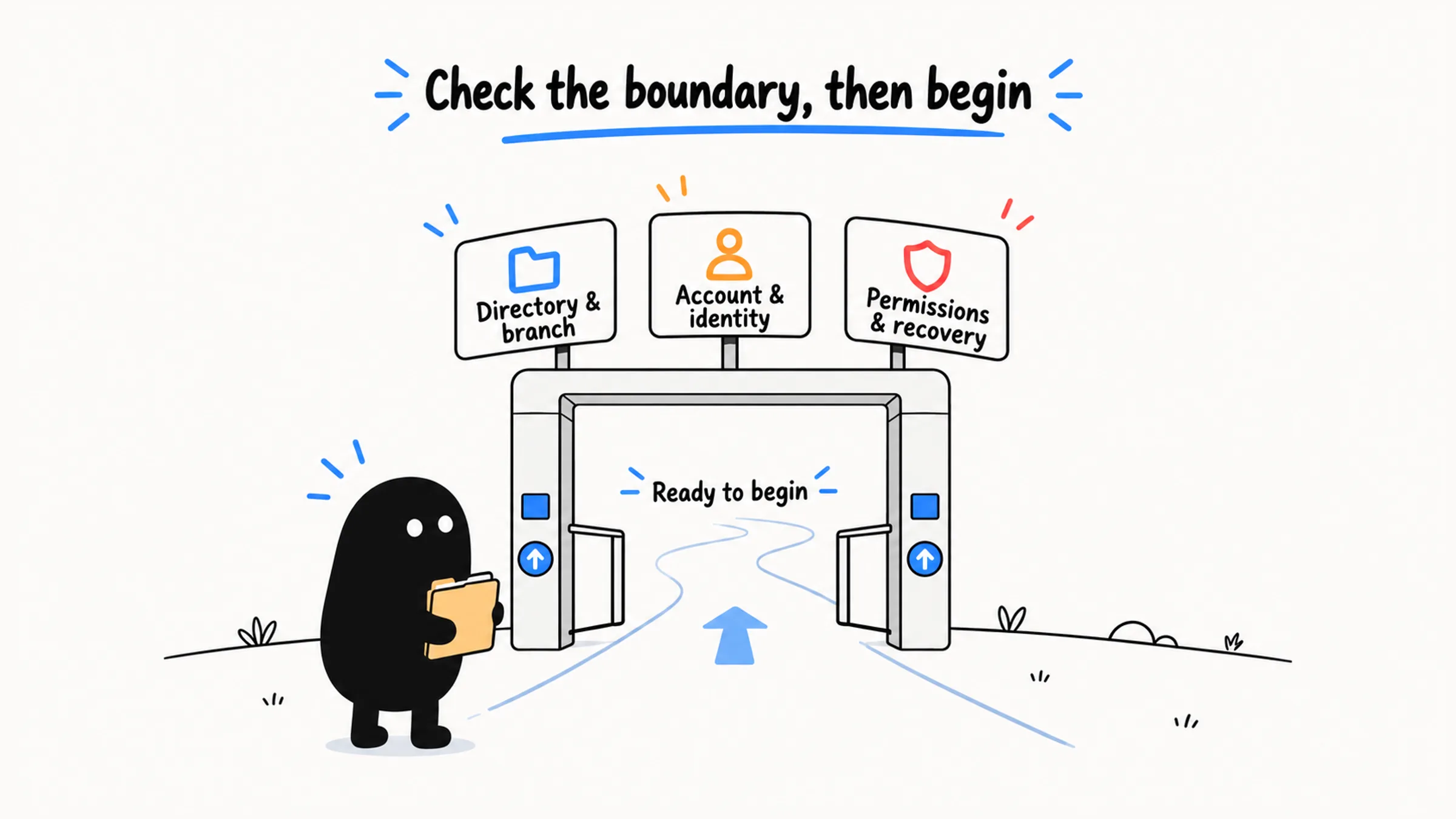
07 Run Five Checks Before You Start
Before you start or resume a session, go through these in order:
| Check | What to confirm | If something's off |
|---|---|---|
| Environment | Directory, branch, uncommitted changes | Switch to the right project and deal with existing changes first |
| Session | Same task? Context too heavy? | /compact, a handoff file, or a new session |
| Identity | Account, token, Git identity, data boundaries | Use the matching account's launch command and keep projects separate |
| Permissions | Command risk, recovery path, need for isolation | Choose auto mode, manual approval, or an isolated environment |
| Version | Current version, benefit of changes, rollback plan | Hold off, upgrade, verify, or roll back |
The version row is easy to overlook. The tool itself keeps changing, and a new release can change commands or default behavior. Whether to update right away is its own decision.
Keep three things in view as you check: which project you're in, what Claude Code is about to do, and whether you can recover if it goes wrong. Start only when the directory, account, and task scope are all right. Two mismatches come up often. The directory and account are fine but the request is vague, so tighten the task first. Or the request is clear but files have changed for no obvious reason, so read the diff first.
When something's off, fix that one item and run through the list again. Once you know where Monday's 14 files came from, "keep going" finally means something specific.